
Short answer To watch Prime Video together in sync, install the Watch Peak Party extension in both browsers, open the title on primevideo.com, press Start party and send the invite link. Give the Prime player a few seconds to finish loading before anyone scrubs. You each stream from your own Amazon account — the party shares only the position in the video.
Prime Video is the service where a naive watch party breaks most visibly. Amazon's web player runs its own media pipeline, and it publishes a duration a long time before it has anything buffered to play. Push a position into that window and the player does not quietly ignore you — it gives up and shows "we're currently experiencing a problem" to the person who just joined.
What you need
- Chrome 116 or newer, or another Chromium browser — Edge, Brave and Arc all
run it. That floor is
minimum_chrome_versionin the manifest, not a guess. - The extension in both browsers. Playback is kept in step by the extension running on each side, so the person you are watching with installs it too. It is the only thing either of you has to do more than once.
- Your own Prime Video access. A party shares the position in a video, never the video itself and never your session. You each sign in to your own account.
- A title both accounts can play. Prime mixes included titles with rentals and channel add-ons, and the catalogue differs by country. If it is a rental, you each rent it.
Starting the party
-
Open the title on primevideo.com
Get to the detail page —
primevideo.com/detail/<id>, with or without a title slug in the middle. That id is what identifies the title to the room, so both of you open the same thing rather than the same search results.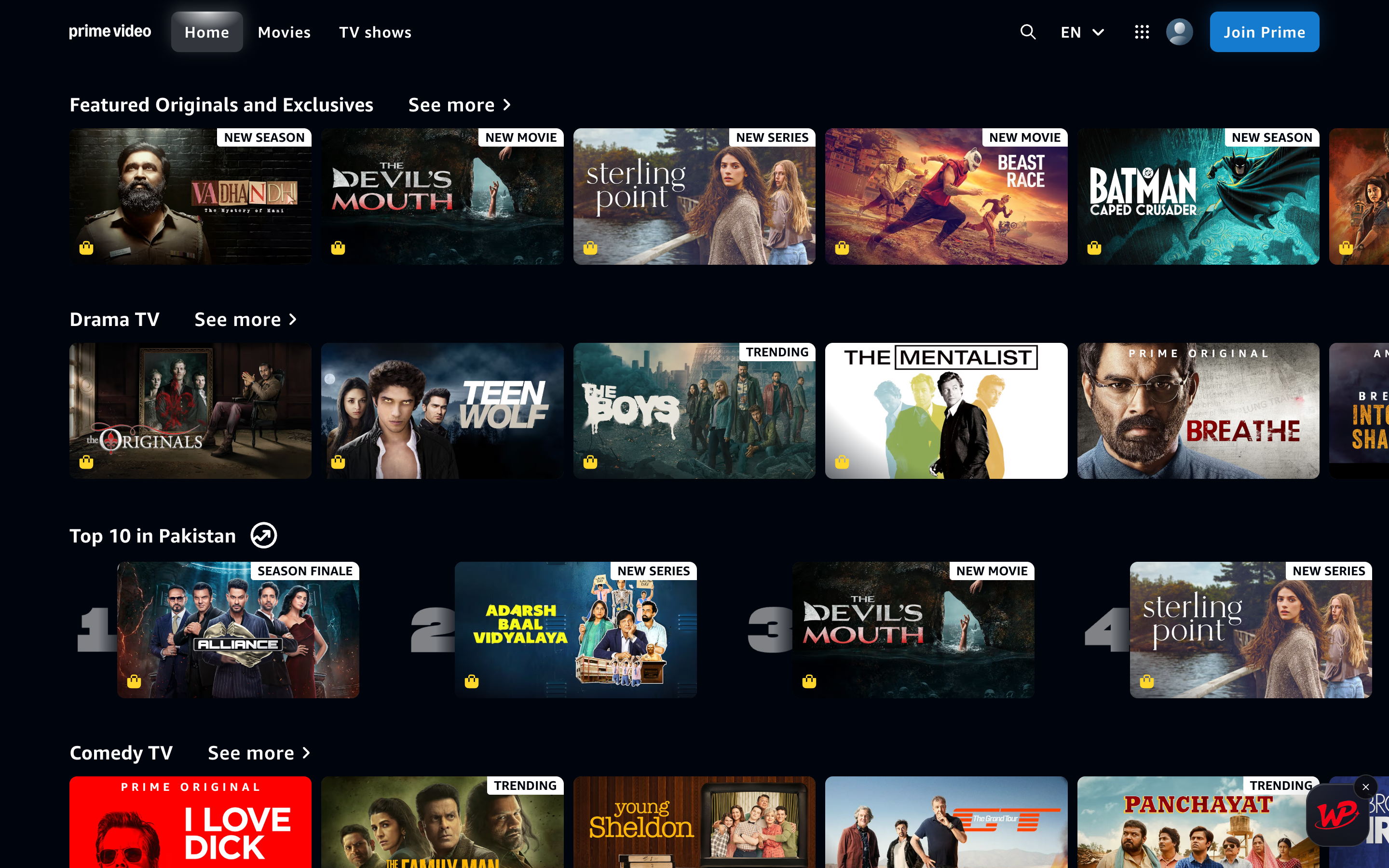
Captured on primevideo.com. The badge is live on the site the moment the extension is installed. -
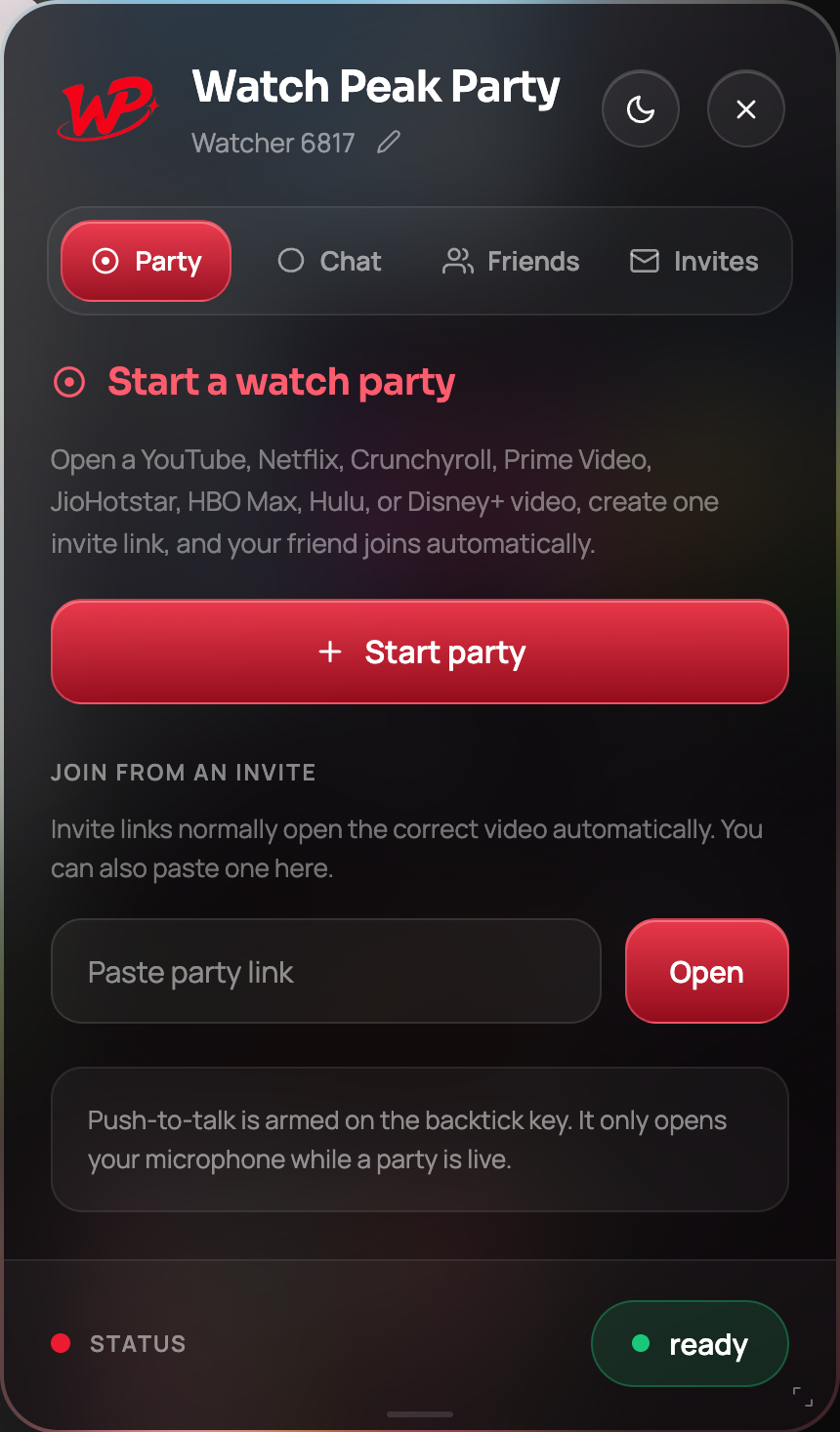
Click the badge and press Start party
The panel opens on the Party tab. Press Start party; the room is created against the title in this tab.
-
Send the invite link
Copy the link and send it. Their browser opens the same detail page with autoplay requested, so they land in the player rather than on a menu.
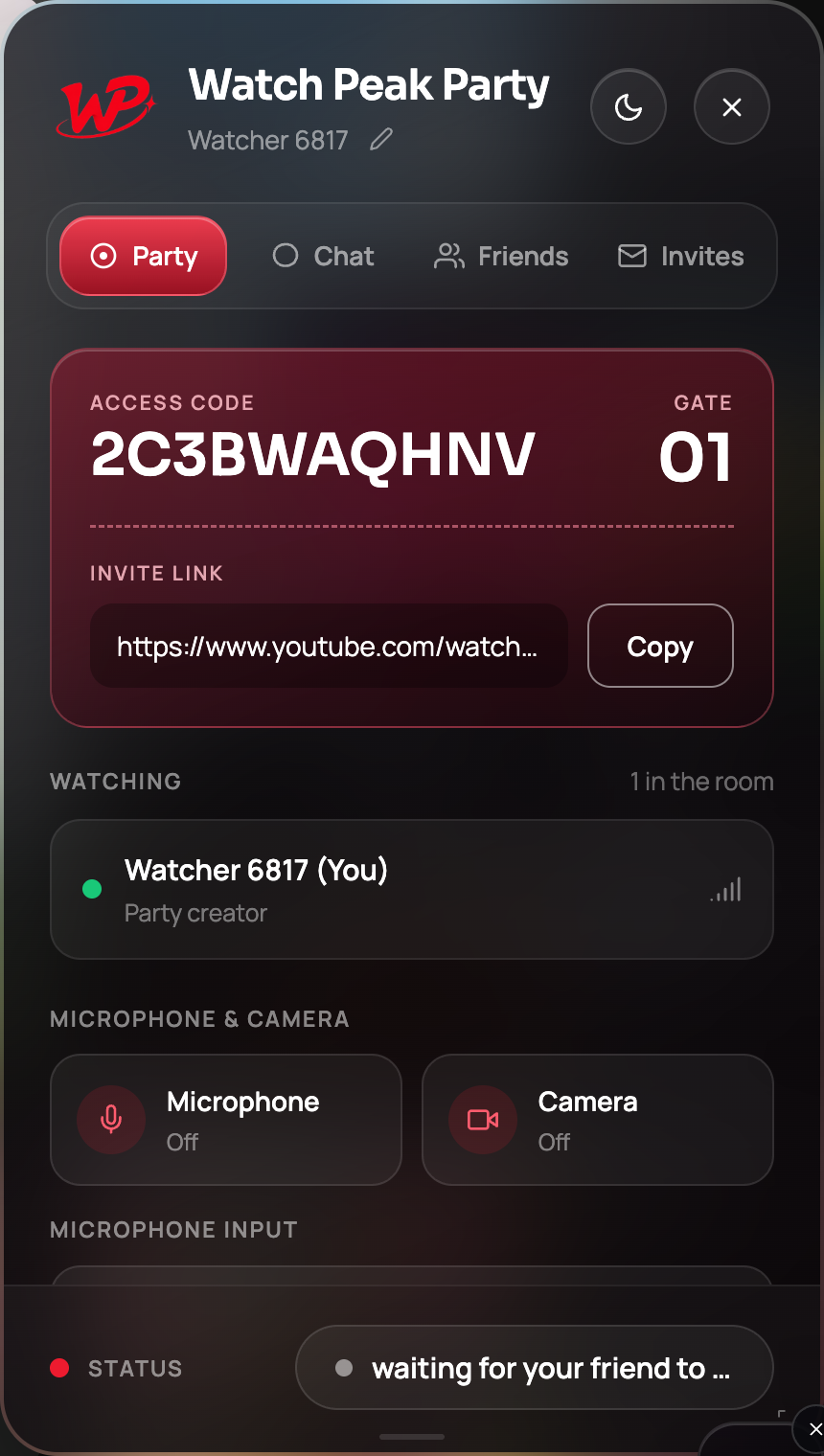
One link. It carries the title and the room, nothing about your Amazon account. -
Wait for a picture before you scrub
This is the one habit worth learning on Prime. Give the joining side a few seconds to show an actual frame before you jump around the timeline. The extension already refuses to push a position into a player that has nothing buffered, and it spaces consecutive jumps about a second and a bit apart — but a calm start still gets you a clean one.
When the status pill reads connected and both players show a frame, scrub freely.
You are done when both sides show the same frame and pausing on one pauses the other. If their player showed an error while yours kept playing, they should reload the tab and re-open the invite link; the room is still there.
Why Prime needs special handling
The adapter for Prime Video is the only one that overrides two things: when a position may be applied at all, and how often. In plain terms:
- A position is accepted only once the player reports real playable data, not merely a duration. That is the check that stops the "experiencing a problem" error on the joining side.
- Consecutive jumps are spaced. Prime tolerates one seek and errors on a rapid run of them, which is exactly what a join burst plus a retry looks like if nobody slows it down.
- Amazon's server-side ads are detected from the player's own ad countdown, so an ad on one side is not mistaken for the other person having jumped forward.
On Prime, a party that looks broken during the first ten seconds is usually just a player that has not finished starting. Wait, then press Sync now.
How this differs from Amazon Watch Party
Amazon has its own Watch Party feature, and where it works it works. The differences that matter in practice:
| Amazon Watch Party | Watch Peak Party | |
|---|---|---|
| Scope | Prime Video titles only, where eligible | YouTube, Netflix, Prime Video, Crunchyroll, Disney+, Hulu, HBO Max and JioHotstar |
| Voice | Text chat | Text chat, plus voice and video with push-to-talk |
| Where the chat lives | Inside Amazon's own player layout | A floating panel you drag, resize or collapse — the player is never resized |
| If you also want to watch YouTube | A different tool | The same one |
We are not going to tell you Amazon's feature is dead, because it is not. If you only ever watch Prime and the titles you want are eligible, use it.
Common questions
Why did my friend see "we're currently experiencing a problem"?
Prime's player rejects a position it cannot reach yet. The extension waits for the player to have real buffered data before applying one, so this should be rare — if it happens, they reload and re-open the invite link.
Does this work for rented or purchased titles?
Yes, as long as each person has their own access to the title. A party synchronises the timeline; it does not lend you a rental.
Does it work with X-Ray open?
Yes. X-Ray is a per-viewer overlay and has nothing to do with the shared timeline.
Do the ads stay in sync?
Ad breaks are inserted per viewer, so they may not land at the same moment. The extension recognises Prime's ad countdown and does not treat an ad as a jump.
One link. Same second. No screen sharing.
Watch Peak Party keeps YouTube, Netflix, Prime Video, Crunchyroll, Disney+, Hulu, HBO Max and JioHotstar in sync — with chat, voice and video built in.
Add to Chrome