Short answer To watch YouTube together in sync, install the Watch Peak Party extension in both browsers, open the video, click the WP badge, press Start party and send the one invite link it gives you. Both of you keep your own YouTube stream at full quality — only the position in the video is shared, so there is nothing to screen share.
Watching a video "together" over a call is a bad imitation of the thing. One of you is always a second and a half behind, the picture is a re-encode of a re-encode, and somebody spends the evening saying three, two, one, play. A watch party fixes it at the source: both browsers keep their own perfect copy of the video, and only the position in it is shared.
What you need before you start
This guide is the whole procedure on YouTube, start to finish. It takes about three minutes the first time and about fifteen seconds every time after.
- Chrome 116 or newer, or another Chromium browser — Edge, Brave and Arc all
run it. That floor is
minimum_chrome_versionin the manifest, not a guess. - The extension in both browsers. Playback is kept in step by the extension running on each side, so the person you are watching with installs it too. It is the only thing either of you has to do more than once.
- A video you can both open. The party shares the position in a video, not access to it. A private, age-gated or regionally blocked video is still blocked inside the party.
Start a party in six steps
-
Install Watch Peak Party in Chrome
Add the extension, then click its icon in the Chrome toolbar. You should get the popup below. It is not where parties are run — the party lives on the video page — but it is where Push-to-Talk is armed, and the Open Watch Peak Party button at the bottom brings up the panel on whichever tab you are on.
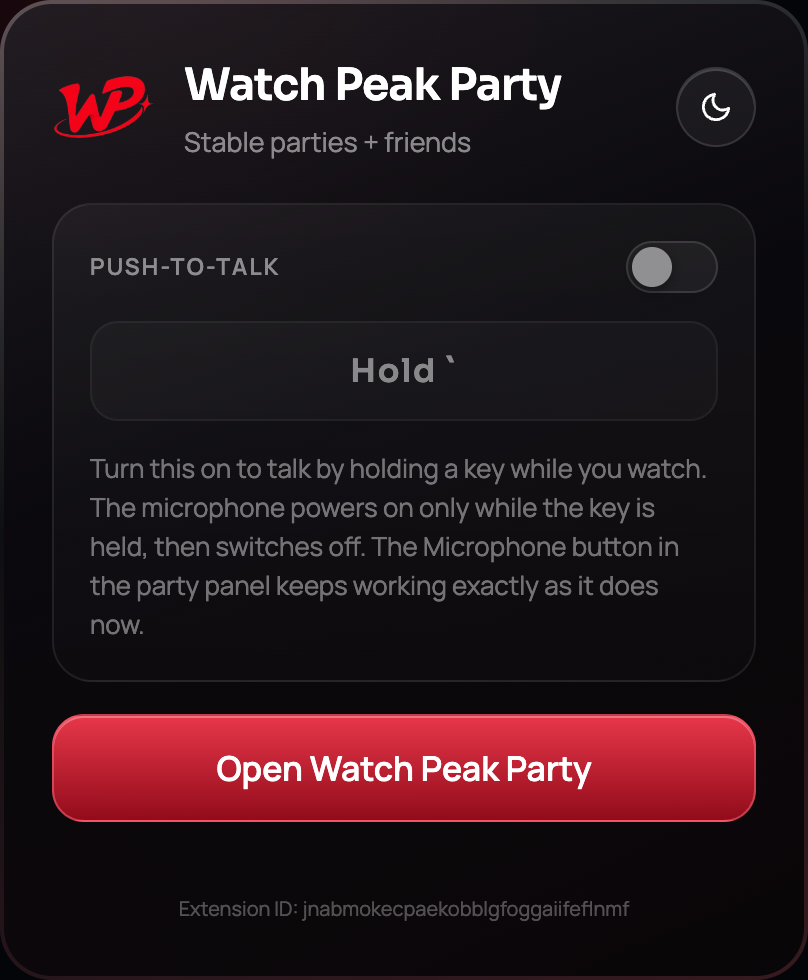
The toolbar popup. 1 opens the panel on the current tab; 2 is the Push-to-Talk switch, which we come back to in section 04. -
Open the video you want to watch
Go to any YouTube watch page. A round red WP badge appears in the bottom-right corner of the window, over the page rather than inside it. If you do not see it, reload the tab once — a tab that was already open before the extension was installed has no extension in it.
The badge is draggable. Wherever you leave it is where it will be next time, on every site.
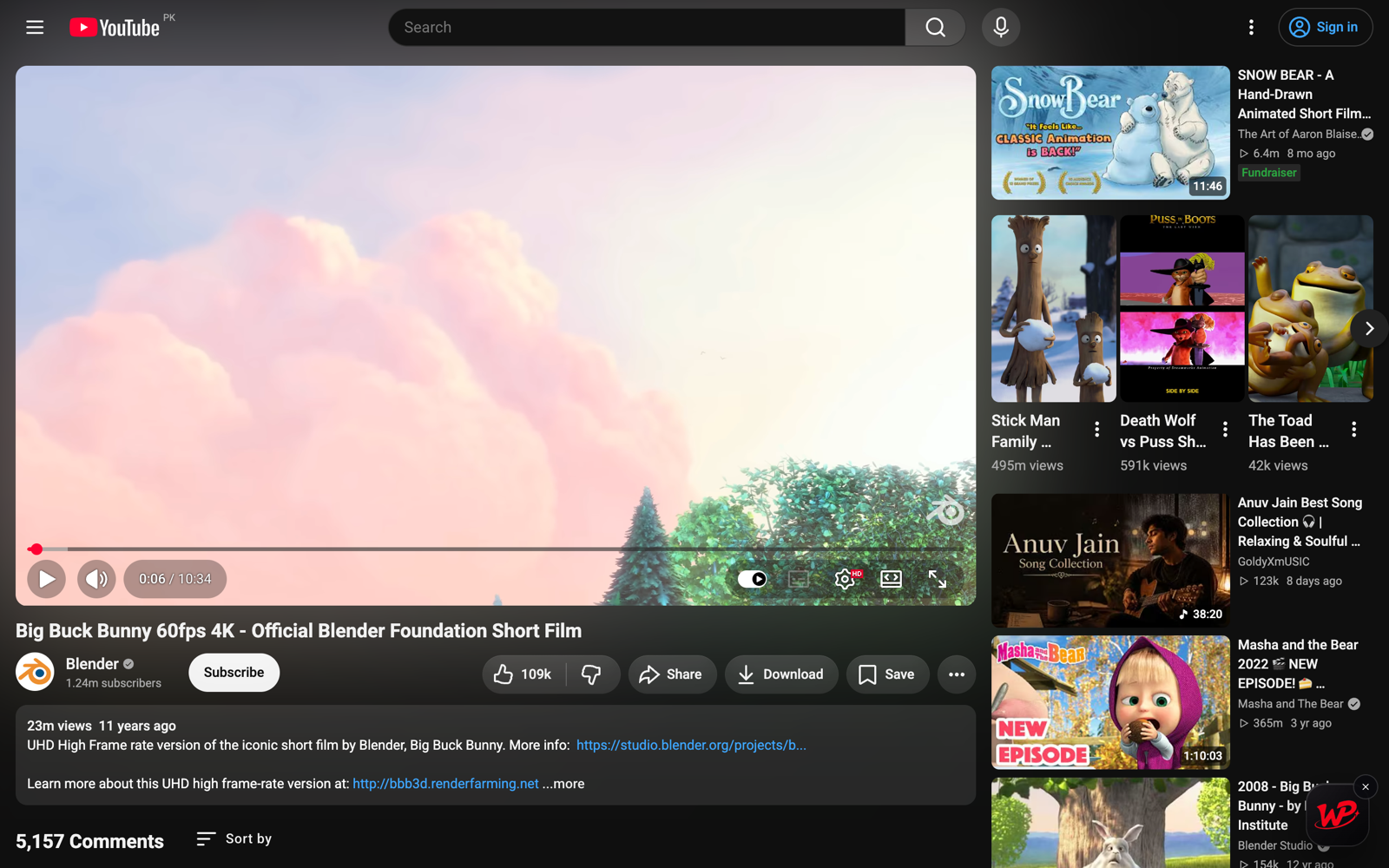
The badge sits over the page. YouTube's own layout is untouched — the player keeps its full width. -
Open the panel from the WP badge
Click the badge. The panel opens on the Party tab, which is the only tab you need for the next two steps. Drag it by its header if it is covering something; drag the handle in its bottom-right corner to resize it, and double-click that handle to put it back.
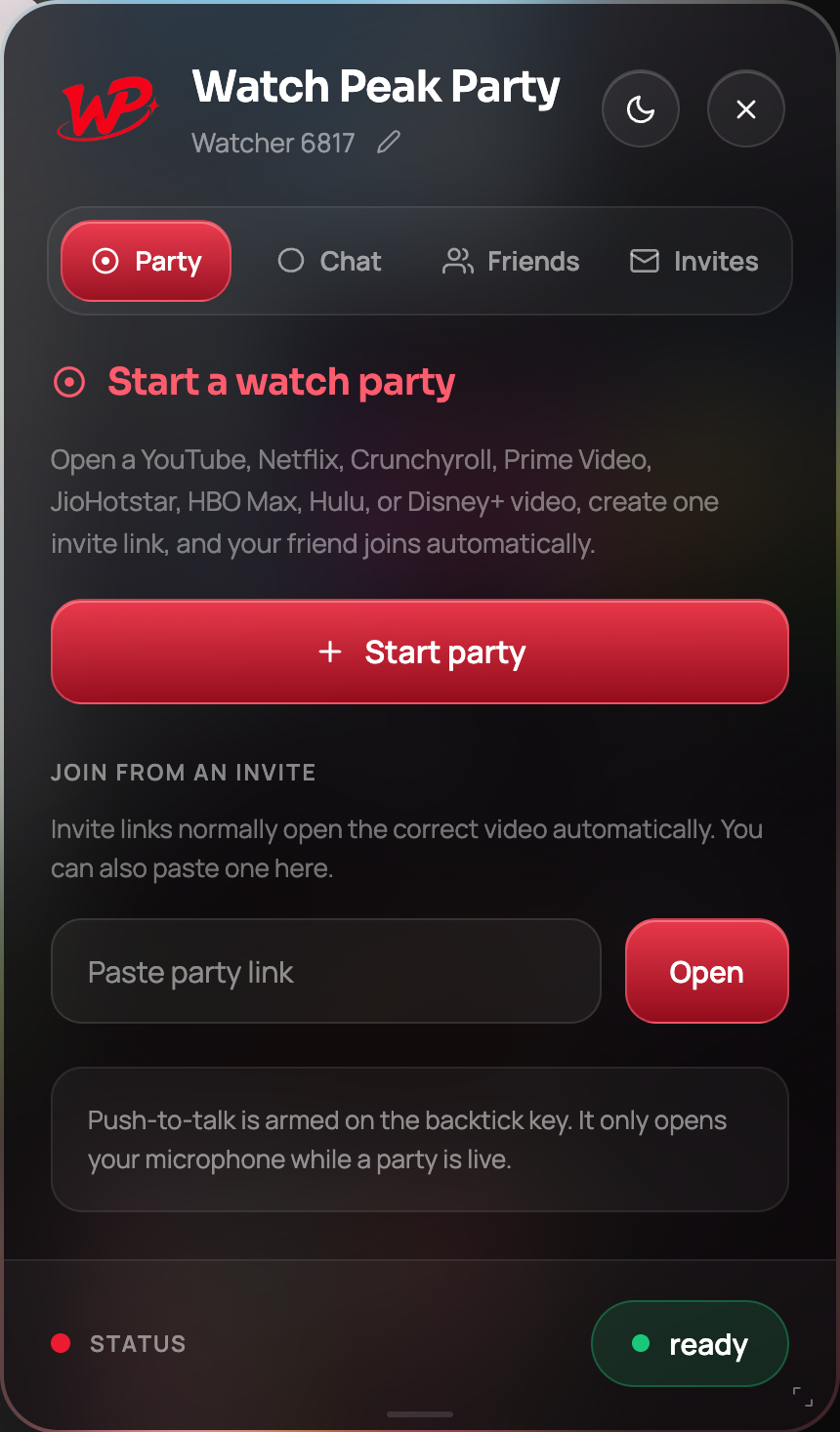
The panel before a party exists. -
Press Start party
Press the red Start party pill under "Start a watch party". The room is created against the video that is open in this tab, which is why you open the video first — a party started on a blank tab has nothing to sync.
The panel switches to its live state and the status pill at the bottom changes to waiting for your friend to join.
One button. There is no room to name, no meeting to schedule and no account needed to get this far. -
Copy the invite link and send it
The live panel leads with a ticket. The part that matters is the invite link: press Copy beside it and send it however you normally talk to this person.
The link carries the video as well as the room, so when they open it their browser lands on the right video and joins the party in one step. There is no code to read out and nothing to type.
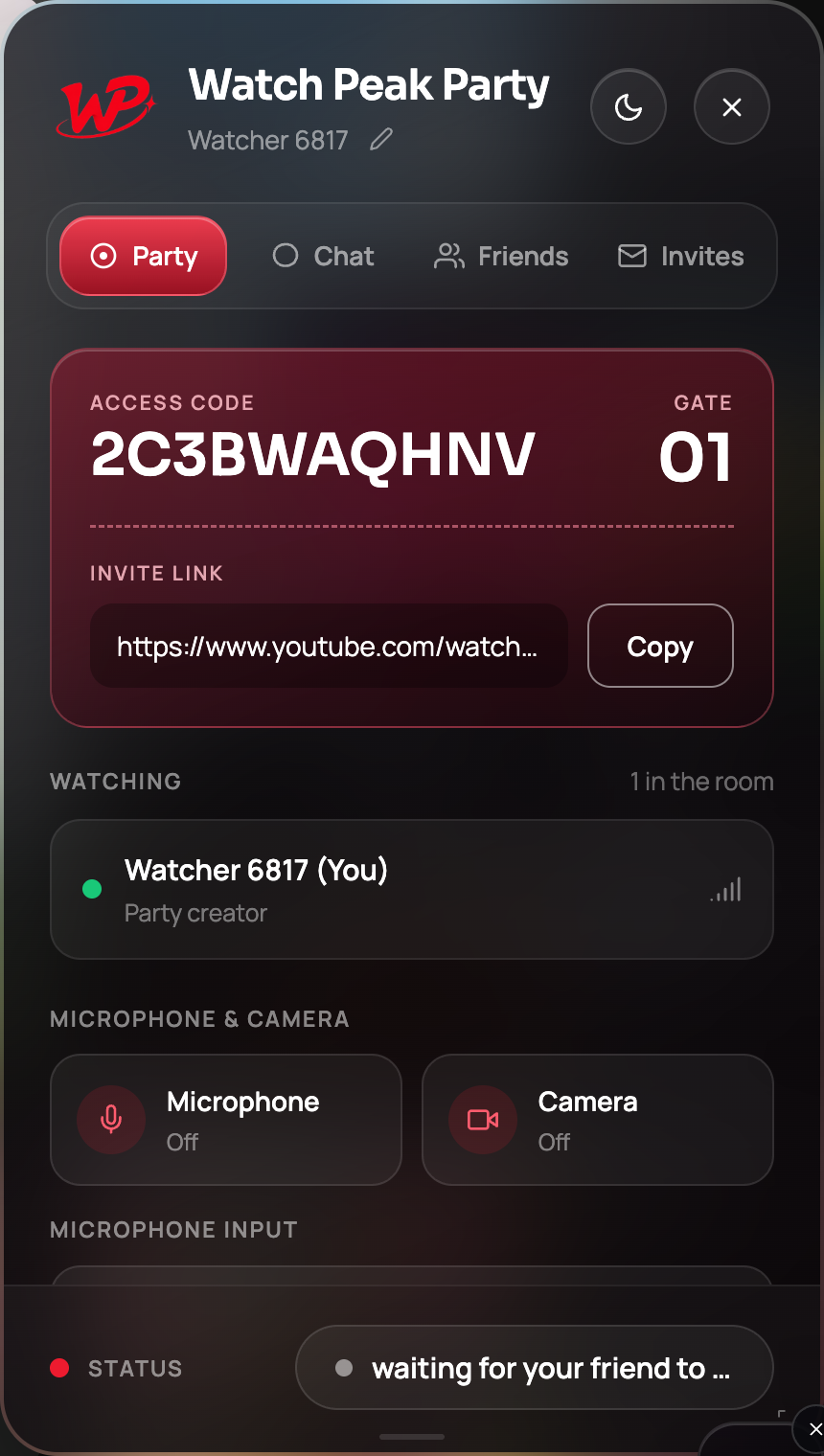
The invite link and its Copy button. This is the only thing you need to send. -
Talk and type while you watch
Once they are in, the Watching list shows both of you and the status pill reads party connected. Everything else is optional: the Chat tab for typing, and the Microphone and Camera buttons on the Party tab for talking and being seen.
Both start off. Nothing opens your microphone until you press this, or hold the push-to-talk key.
You are done when the status pill at the foot of the panel reads party connected, the Watching list shows two people, and pausing on your side pauses on theirs within about a second. If the pill still says waiting for your friend to join, they have not opened the link yet.
What your friend sees when they join
They click the link. If they already have the extension, the video opens and the panel joins the room on its own — there is no "join" button to find. If they do not have it yet, they are sent to install it first, and the link still works afterwards.
From that point the two players hold each other's position. Whoever presses play, pause or scrubs the timeline moves both sides. There is no "host" to hand over: either person can drive.
Changing the video mid-party works the same way. Open a different YouTube video in the same tab and your friend's tab follows to it, then re-syncs to your position — you do not start a second party.
Voice, camera and push-to-talk
The Chat tab is a normal message box with an emoji picker and a mute toggle for the notification sound. It is unlimited and free, and it is the right default for a long video — typing does not talk over the dialogue.
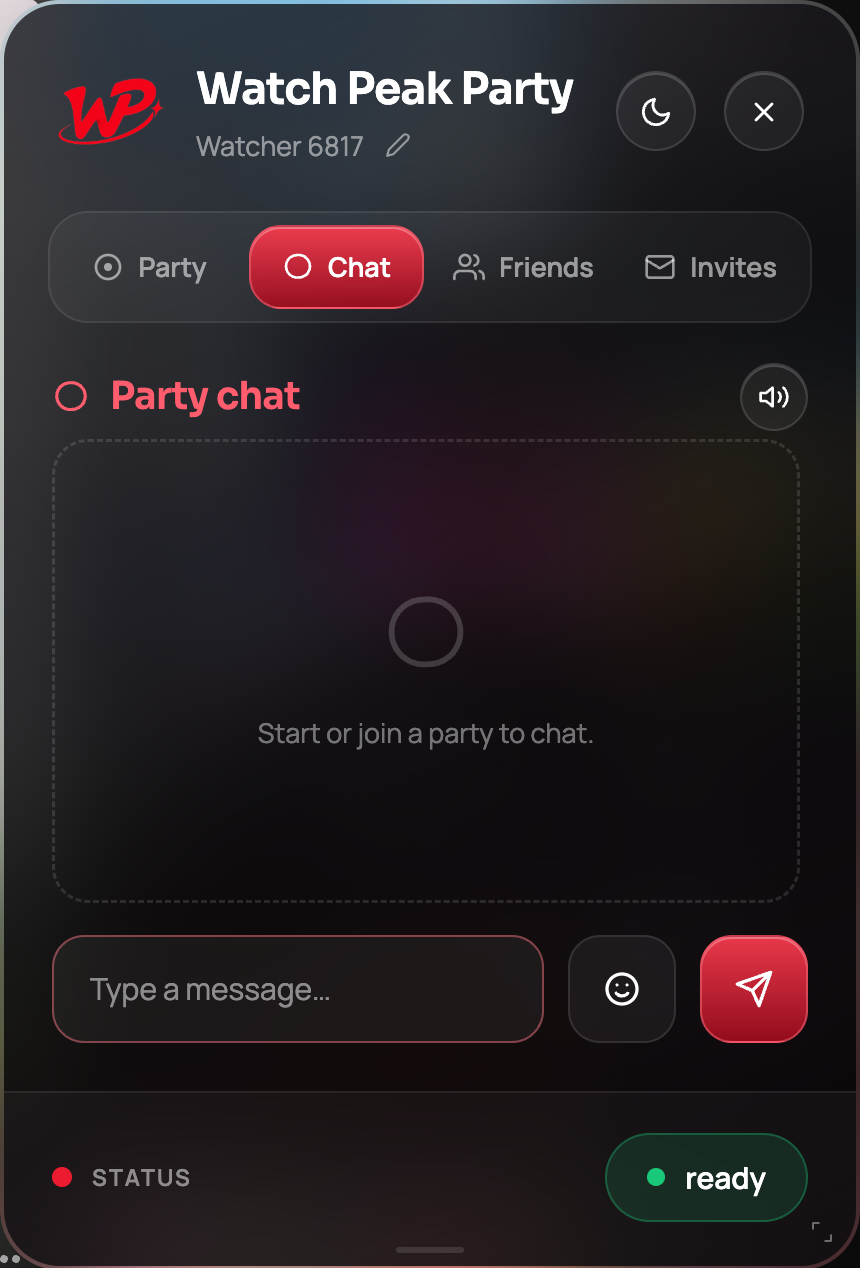
For voice you have two options, and they behave differently:
- The Microphone button — an open line. Press once, talk freely, press again to stop.
- Push-to-Talk — armed on the backtick key ` by default, and changeable in the toolbar popup. Your microphone opens only while the key is held and switches off the moment you let go. On a long video this is the one to use.
Backtick is the default for a reason: it is unbound in every player the extension supports, so it never fights the site's own shortcuts. Push-to-talk also only does anything while a party is live — outside a party the key is just a key.
If playback drifts
The extension corrects itself whenever the two sides are more than about half a second apart, so small wobbles fix themselves. Two things cause the rest: a stall in one person's buffering, and an ad break landing on one side only.
- Press Sync now on the Party tab. On the side that is not driving it means put me where they are — it never drags the other person to your position.
- If one side is still stuttering, drop the quality on that side. YouTube's quality setting is per-viewer; a party does not force you both onto the same bitrate.
- If the status pill has gone amber, the room lost its connection. Re-opening the invite link rejoins the same room.
Ads are handled rather than fought: the adapter reads YouTube's own ad-showing state and stops
treating the ad as part of the film, so an ad on one side does not drag the other side backwards.
Common questions
Does my friend need the extension too?
Yes. Playback is synced by the extension running in both browsers, so both people install it once. After that, joining is a single click on the invite link.
Does the party work on age-restricted or private videos?
The party only synchronises playback; it does not grant access. If a video requires a sign-in or is unavailable in your friend's country, they have to be able to open it themselves first.
Does the panel shrink the video?
No. The panel floats over the page and can be dragged, resized or collapsed back to the badge. YouTube's layout is never resized, so the player keeps its full width — which is the main reason the panel is an overlay and not a sidebar.
How many people can join one party?
A room is built for two people watching together — the panel labels it a gate of 01 for that reason.
Is it free?
Parties, invites, friends and text chat are unlimited and free. Voice and video minutes are the metered part of the product.
One link. Same second. No screen sharing.
Watch Peak Party keeps YouTube, Netflix, Prime Video, Crunchyroll, Disney+, Hulu, HBO Max and JioHotstar in sync — with chat, voice and video built in.
Add to Chrome