
Short answer To watch Netflix together in sync, install the Watch Peak Party extension in both browsers, each sign in to your own Netflix account, open the episode, press Start party and send the invite link. Netflix streams to each of you separately at full quality — the party only shares where you are in the episode, so no one is watching a re-encoded screen share.
Almost every "watch Netflix together" answer online starts by telling you to share your login. Do not. It breaks Netflix's own terms, it burns one of your household's streams, and it hands someone your viewing history and payment details to fix a problem that is really about timing. The timing problem has its own solution.
Why account sharing is the wrong fix
Two people signed into one Netflix account are two streams against one plan's limit, on one viewing history, with one set of recommendations quietly merging into nonsense. And it does not even solve the thing you wanted: two people on one account still have to count each other down to press play.
What you actually want is for two independent Netflix sessions to agree on a timeline. That is what the extension does, and it is why the invite link contains a room and a title — never a credential.
- Chrome 116 or newer, or another Chromium browser — Edge, Brave and Arc all
run it. That floor is
minimum_chrome_versionin the manifest, not a guess. - The extension in both browsers. Playback is kept in step by the extension running on each side, so the person you are watching with installs it too. It is the only thing either of you has to do more than once.
- Your own Netflix access. A party shares the position in a video, never the video itself and never your session. You each sign in to your own account.
The walkthrough
-
Add the extension in both browsers
Install from the Chrome Web Store, then open
netflix.com. The WP badge appears over the page — that is how you know the extension is live on Netflix and not only on YouTube.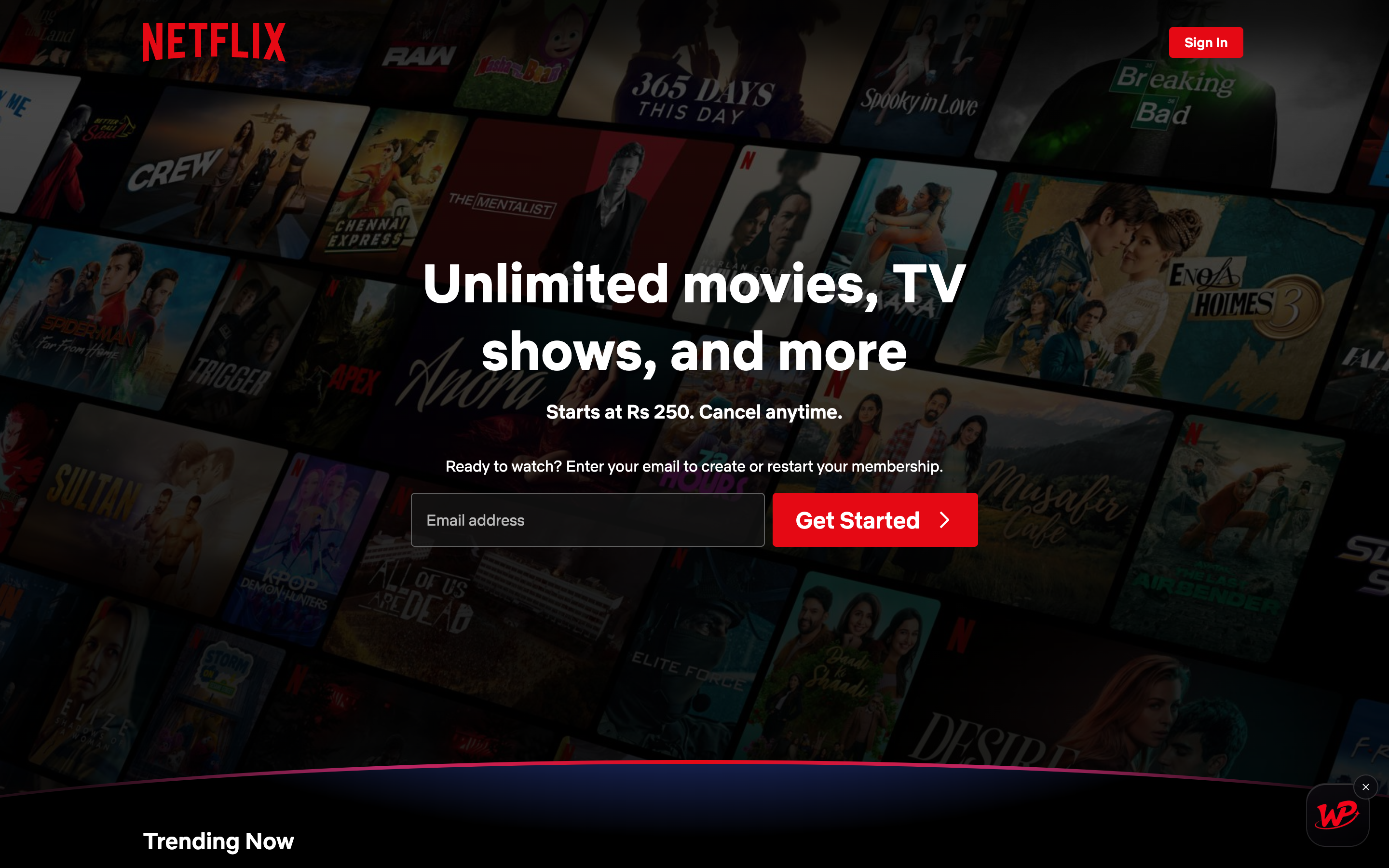
Captured on netflix.com. The badge is the same object on every supported service, and it is draggable. -
Open the episode you both want
Get to the player — a URL of the form
netflix.com/watch/<id>. That numeric id is what the party identifies the title by, so the other side lands on exactly the same episode rather than on the series page.On a browse page you may also see a Party pill next to Netflix's own Play button in the title preview. It does the same thing one step earlier: it resolves the episode Netflix itself would open, then starts the party on it.
-
Press Start party
Click the badge, then Start party. The panel goes live.
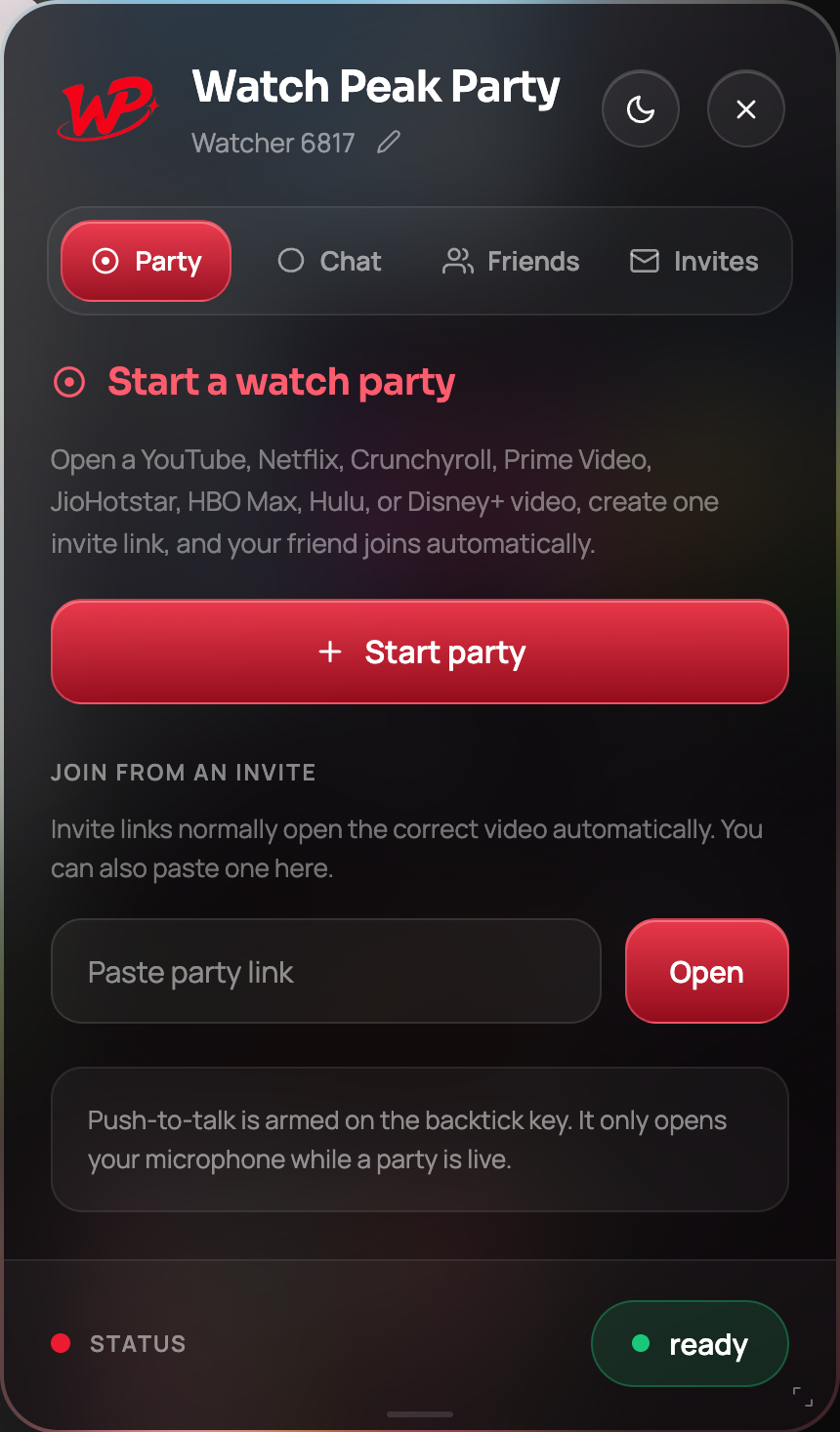
The Party tab before the room exists. -
Send the invite link
Press Copy beside the invite link and send it. The link identifies the title and the room and carries no part of your Netflix session, so opening it signs nobody into anything — they land on the episode as themselves.
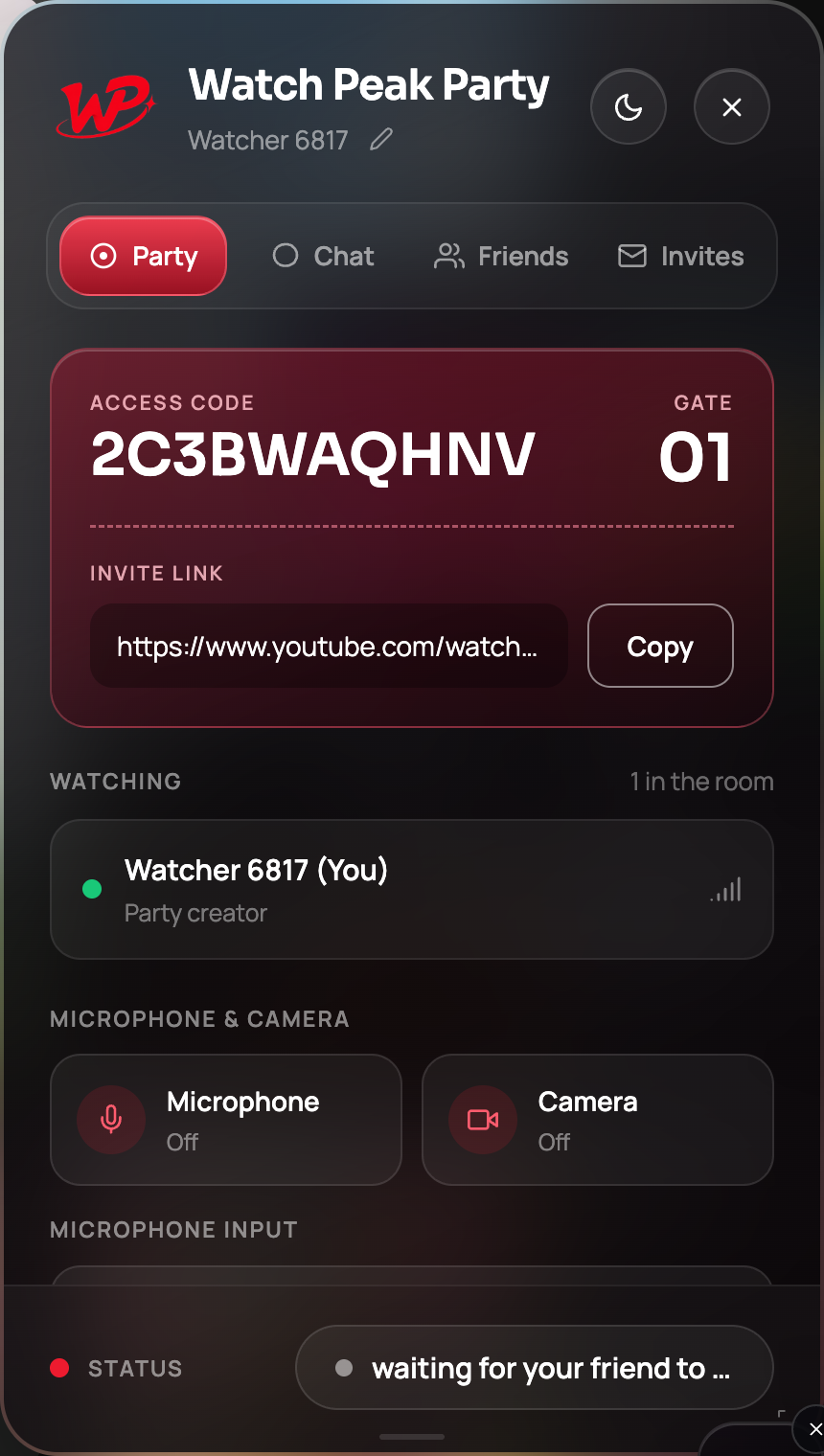
The invite link is the whole handshake. -
Press play once
When their name appears in the Watching list, press play. From then on either person's play, pause or scrub moves both sides.
Two people in the room, each on their own account.
You are done when both players are inside a second of each other and pausing on one side pauses the other. Netflix's own "Are you still watching?" prompt is per-viewer — whoever gets it dismisses it, and the party re-syncs after.
Three things that are specific to Netflix
Netflix does not expose its player the way a plain HTML5 page does — it wraps it in its own
controller. The extension therefore talks to the Netflix player through a small bridge injected into the
page's own world, rather than writing to a <video> element directly. You never see this,
but it explains the three differences you will notice:
| Behaviour | What happens in a party |
|---|---|
| Skip intro | A jump like any other. Whoever presses it moves both sides, so the other person is not stranded in the theme tune. |
| Post-episode autoplay | Netflix rolls the next episode independently on each side. The party follows the change rather than fighting it, then re-syncs to the driver's position. |
| Per-viewer quality | Bitrate is negotiated by each browser separately. One of you on a poor connection does not drag the other one's picture down. |
Netflix occasionally needs a moment after a navigation before it will accept a position. The party waits for the player rather than forcing it, so the fix is to wait a couple of seconds and then press Sync now — not to restart the party.
Household rules, honestly
Netflix's household rules are about who may use one account, and nothing here changes them: the two of you are two accounts. That is the point. It also means the ordinary limits still apply — if a title is not licensed in their country, it will not play for them inside a party either, and the party cannot make it.
What the extension does not do is worth saying plainly: it does not read your Netflix profile, it does not proxy video, and it does not store what you watched. The room knows a title id and two anonymous participants.
Common questions
Do we need the same Netflix plan?
No. Each side streams from their own account at whatever quality their plan and connection allow. Only the position in the episode is shared.
Is this against Netflix's terms?
Sharing one account with someone outside your household is what Netflix restricts. Two people watching their own accounts at the same time is ordinary use, and that is what a party is.
Does it work on a Netflix mobile app?
No. It is a Chrome extension, so both sides need to be watching in a Chromium desktop browser.
What about subtitles and audio tracks?
Both are per-viewer settings and are not synced. You can watch with subtitles on while the other person watches without.
Can more than two people join?
A room is built for two. The panel shows a gate of 01 for exactly that reason.
One link. Same second. No screen sharing.
Watch Peak Party keeps YouTube, Netflix, Prime Video, Crunchyroll, Disney+, Hulu, HBO Max and JioHotstar in sync — with chat, voice and video built in.
Add to Chrome