Short answer Click the badge to collapse, drag the header to move, drag the corner to resize, double-click it to reset.
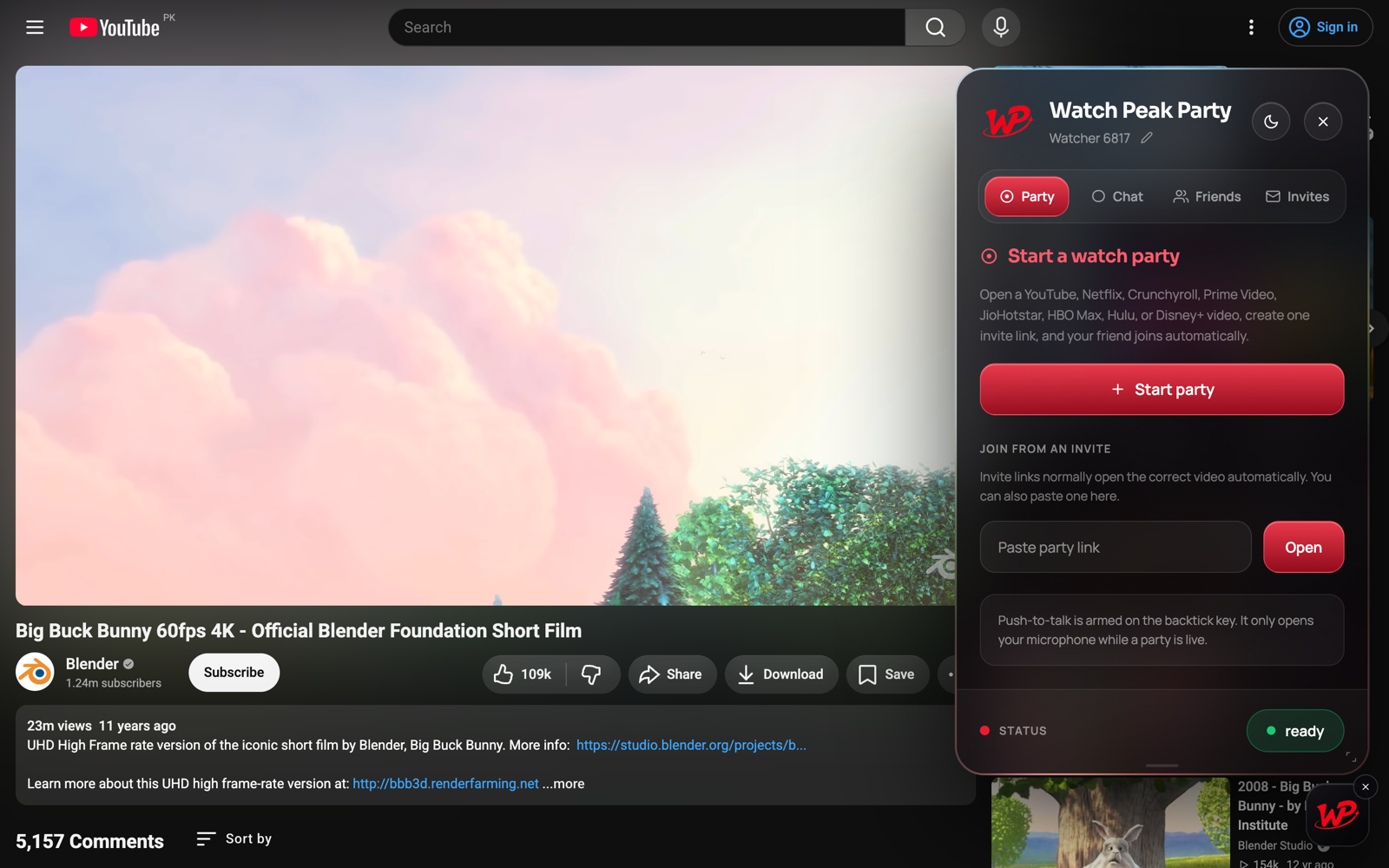
A watch-party panel has one hard requirement: never make the video smaller. Sidebar-style tools fail it by construction — a sidebar takes width, and width comes out of the player. So this one floats, which raises a second problem: something floating over a video is in the way unless you can move it, shrink it and get rid of it. All three of those are one gesture each.
The badge is the on/off switch
The round WP badge is the panel collapsed. Click it to open the panel, click the close control to fold it back to the badge. Drag the badge and it stays where you left it — on every site, not just this one.
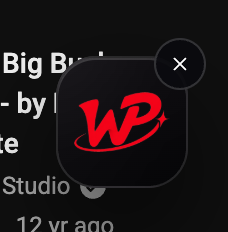
If the badge is not there at all on a supported service, the tab predates the extension: reload it once. A content script cannot retroactively appear in a page that was already open.
Moving and resizing
| Gesture | What it does |
|---|---|
| Drag the panel header | Moves the panel |
| Drag the handle at the bottom edge | Also moves the panel — the second grip is there for when the header is off-screen |
| Drag the bottom-right corner | Resizes the panel |
| Double-click the corner handle | Resets the panel to its default size |
| Click the × | Collapses back to the badge — it does not leave the party |
The × collapses the panel. The party keeps running and playback stays in sync. To actually end it, press Leave party on the Party tab.
The four tabs
- Party — start or leave, the invite link, who is watching, the microphone and camera buttons, Sync now.
- Chat — messages, emoji picker, and a mute toggle for the notification sound.
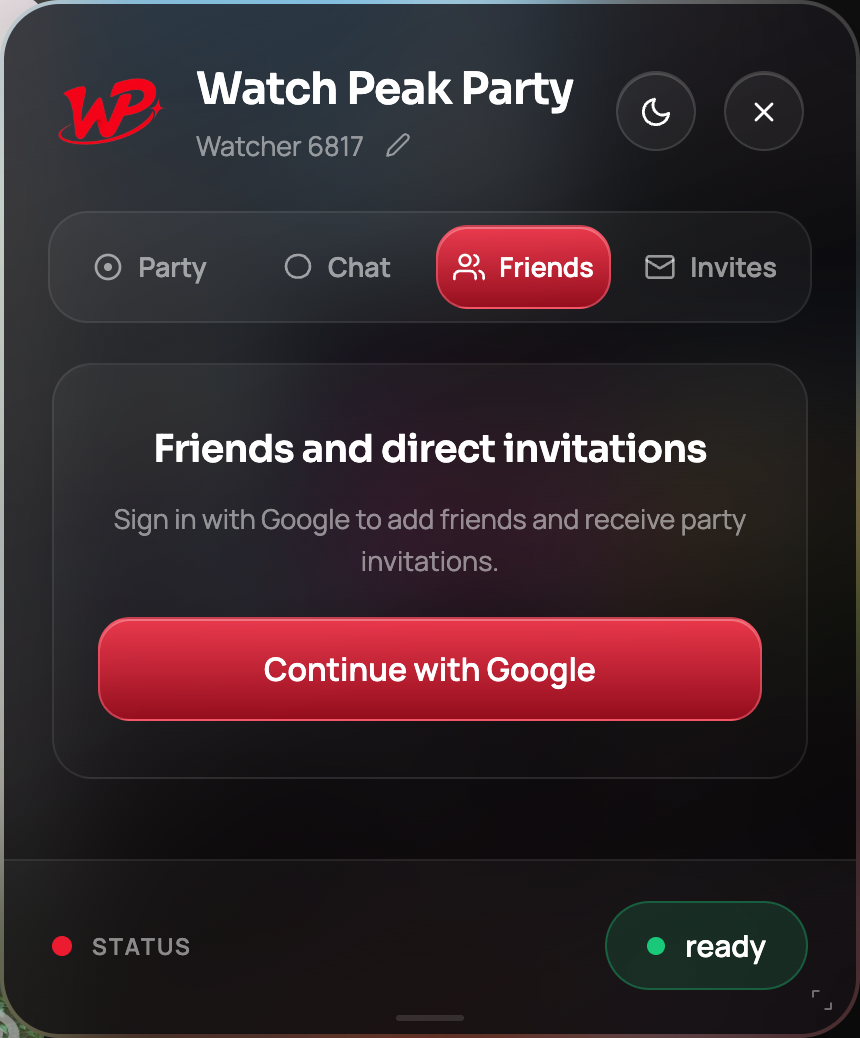
- Friends — Google sign-in, your friend code, and the people you watch with regularly.
- Invites — direct invitations from friends, with a count badge on the tab when any are waiting.
Party and Chat need no account at all. Friends and Invites are the two that do, because they have to know who you are to remember anyone.
The three controls nobody finds
All three are in the panel header, and all three are small on purpose.
- The pencil beside your name. Your display name is what the other person sees in the Watching list and in chat. It starts as something generic; click the pencil, type, press Save.
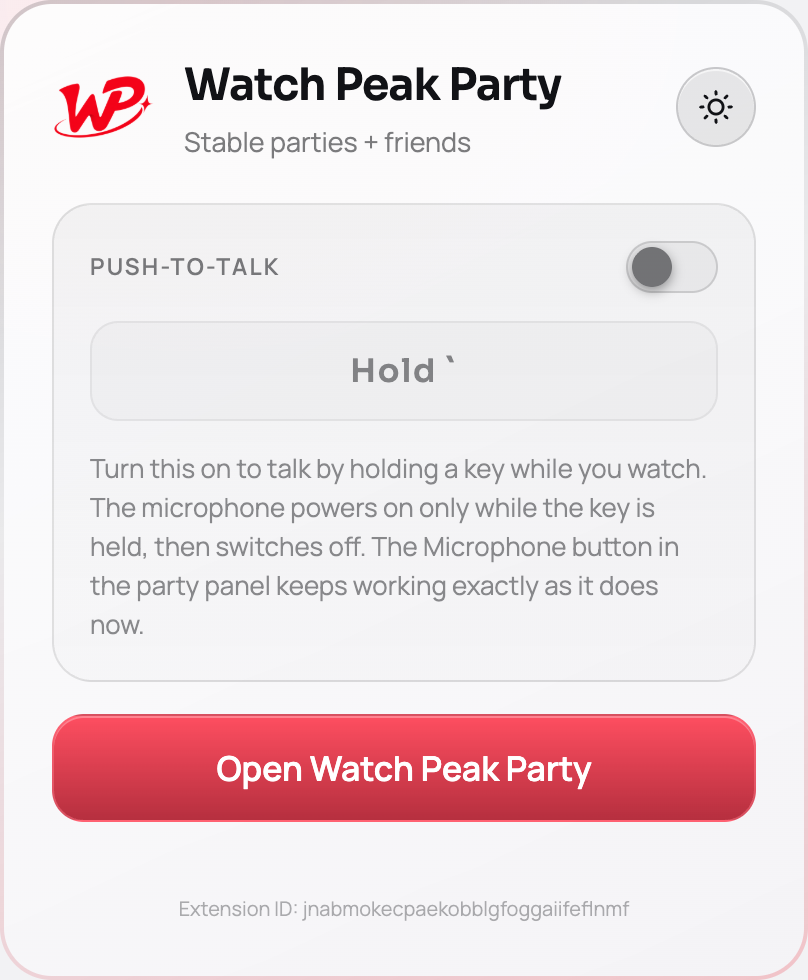
- The theme toggle. The panel ships dark and switches to light. Worth knowing if you watch in a bright room — a dark panel over a bright page is harder to read than the reverse.
- The status pill in the footer. Not a control, but the thing to read when something feels wrong: ready, waiting for your friend to join, party connected, or amber when the room has lost its connection.
Typing in the panel does not reach the page
This one is invisible when it works and maddening when it does not. Video sites bind single letters to actions: on YouTube k pauses, m mutes, f goes fullscreen. A chat box floating over that page will, by default, let every keystroke fall through to the page as well — so typing "make it fullscreen" reorganises your evening.
The panel claims keystrokes while it owns them, so the page's shortcuts do not fire while you are typing, and they work normally the moment you are not. It is the kind of detail that only gets noticed in its absence.
Common questions
Does the panel make the video smaller?
No. It floats over the page and the page is never reflowed, so the player keeps its full width.
Does closing the panel end the party?
No. The × collapses it back to the badge and the party keeps running. Leave party is what ends it.
Will the panel remember where I put it?
Yes, and so will the badge — including on other sites.
Can I use the panel in fullscreen?
Yes. It stays over the video.
Is there a light mode?
Yes, toggled from the panel header.
One link. Same second. No screen sharing.
Watch Peak Party keeps YouTube, Netflix, Prime Video, Crunchyroll, Disney+, Hulu, HBO Max and JioHotstar in sync — with chat, voice and video built in.
Add to Chrome