Short answer Allow the camera for this site in the address bar, then press the Camera button again.
Camera during a film is a minority taste — most people watch with chat and use voice for the reactions — but for a long-distance evening it is the whole point of the exercise. When it does not work, the cause is nearly always one of four things, and they are quick to walk through.
1. The per-site permission
Chrome grants camera access per site, not per extension. A party running on
primevideo.com needs camera permission for primevideo.com — and if you dismissed the
prompt once, Chrome remembers that as a refusal and will not ask again.
Click the icon at the left of the address bar, set the camera to allow, and press the Camera button again.
2. Something else already has the camera
Unlike microphones, cameras are frequently exclusive. A video-call app that is still running — even minimised, even in a meeting you left — can hold the device and everything else gets nothing. The tell is a camera button that flips on and immediately back off, or a permanently black tile.
Quit the other app properly, then try again. On macOS, check whether the camera indicator light is on before you start; if it is, something has it.
3. The weekly allowance
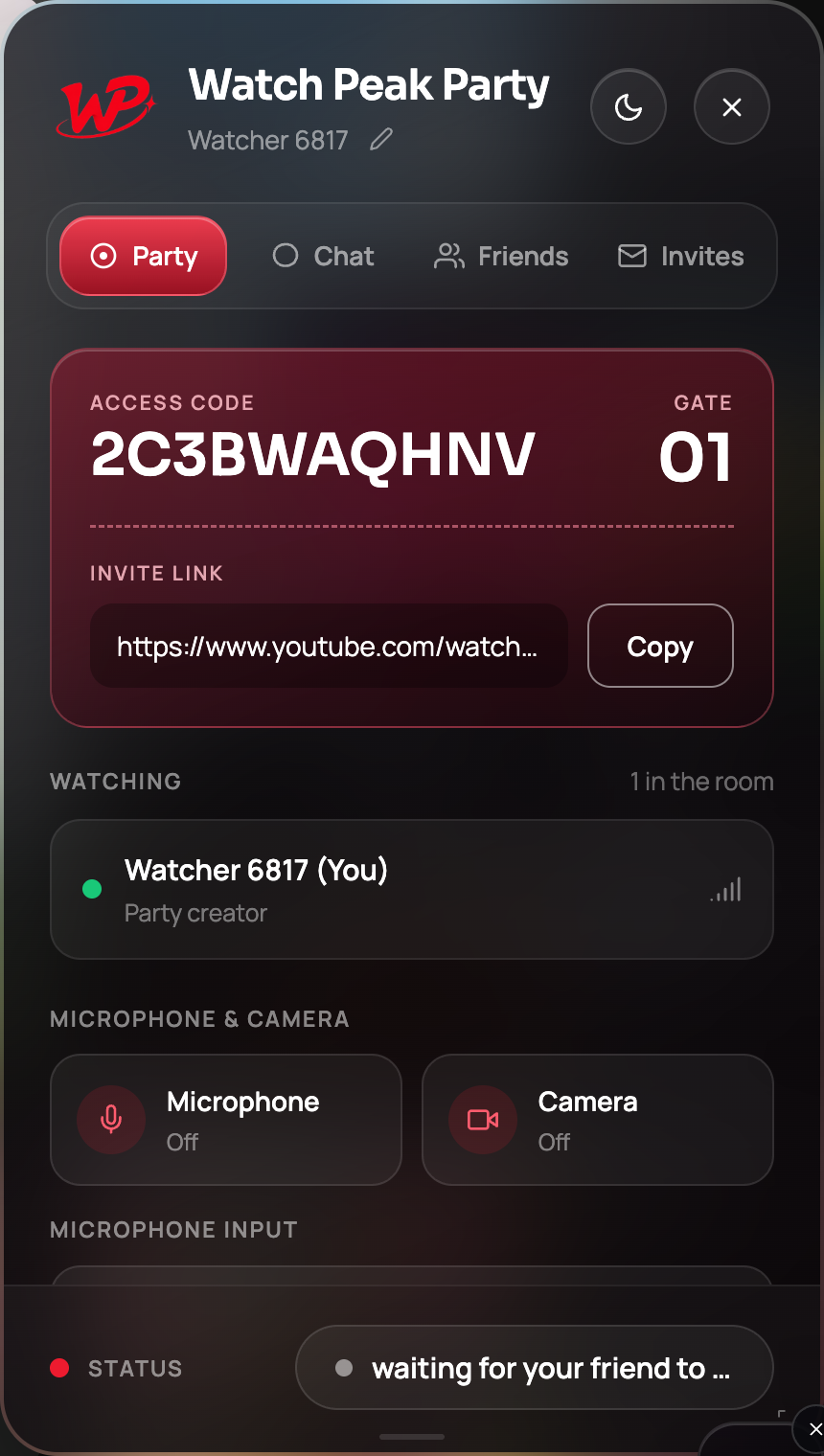
Video is metered alongside voice: there is a weekly allowance of free voice and video minutes, and Premium removes the limit. When it runs out the panel says so in those words under the media buttons, and the camera and microphone stop being available.
Sync and text chat are unaffected — they are unlimited and free regardless. A film with chat is still a perfectly good evening.
4. The boring hardware causes
- A privacy shutter. Enough said, and it happens to everyone eventually.
- The wrong device selected — a virtual camera from some other software is a common default once installed.
- OS-level camera permission. On macOS, Chrome itself needs camera access in System Settings; if that is off, no site gets a picture and no amount of clicking in Chrome helps.
- A laptop lid closed to an external monitor — the built-in camera goes with the lid.
It works when the Camera button stays on and the other person can see you. If your own tile looks frozen but they can see you moving, that is a local preview issue, not a connection one.
When it works but should not be on
Worth a paragraph, because it is the reason to leave it off: a camera stream and a 4K film compete for the same upstream connection, and on an ordinary home line the film loses first. If your party started drifting the moment somebody turned a camera on, that is not a coincidence — see the drift guide.
Voice costs a fraction of what video does. For a two-hour film, push-to-talk and chat are the settings that keep the picture clean.
Common questions
Why does the camera button turn itself off?
Usually another application is holding the camera exclusively. Quit it fully and try again.
Do I need to allow the camera on every streaming site?
Yes. Chrome grants camera access per site, so a party on a new service will ask again.
Is video chat free?
There is a weekly allowance of free voice and video minutes; Premium removes the limit. Text chat and sync are always free.
Can turning on my camera cause playback to drift?
It can, on a constrained connection — a camera stream competes with the film for upstream bandwidth.
Does the other person see my camera if I do not press the button?
No. Nothing is captured until you turn it on.
One link. Same second. No screen sharing.
Watch Peak Party keeps YouTube, Netflix, Prime Video, Crunchyroll, Disney+, Hulu, HBO Max and JioHotstar in sync — with chat, voice and video built in.
Add to Chrome